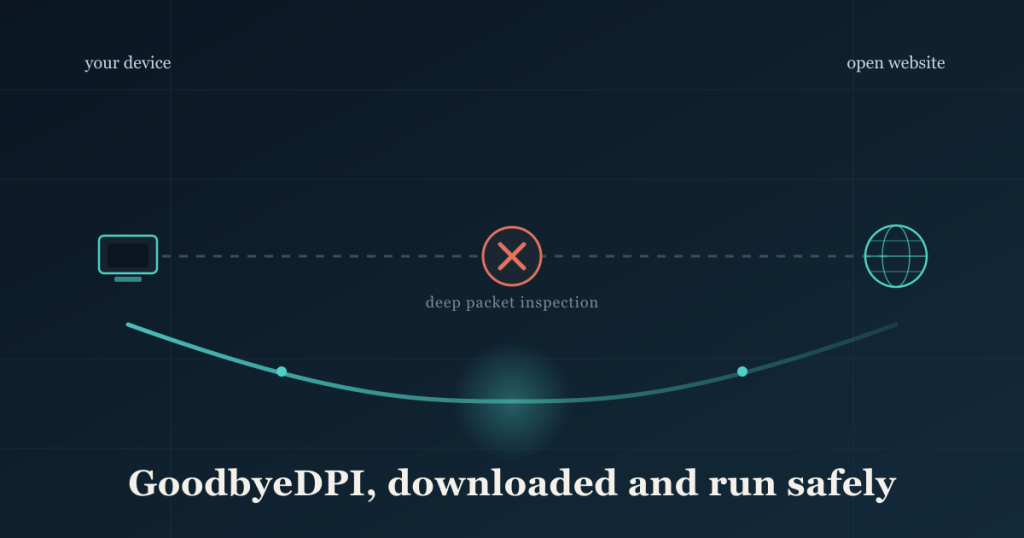
Quick answer: Only download goodbyedpi.exe from the official ValdikSS GitHub repository, verify the file matches what’s listed on the Releases page, then run one of the included .cmd scripts (rather than launching goodbyedpi.exe directly) so it starts with the correct settings for your network. Expect your antivirus to flag it — that’s a known false positive, not a sign of malware.
GoodbyeDPI is a small, well-known Windows tool that helps people access websites their internet provider blocks or slows. It doesn’t hide your traffic as a VPN does — instead, it tweaks how your computer talks to websites so that automated censorship filters can’t recognize and block the connection. Because it’s open source and free, though, it’s also a favorite target for fake “GoodbyeDPI” downloads bundled with adware. This guide walks through getting the real thing, verifying it, and running it correctly.
What Is GoodbyeDPI?
GoodbyeDPI is a free, open-source Windows utility designed to bypass deep packet inspection (DPI) — the technology that internet providers and network administrators use to identify and block specific websites or services. It was created in 2016 by a developer known as ValdikSS, originally to study and counter DPI-based filtering, and it’s distributed under the Apache License through GitHub.
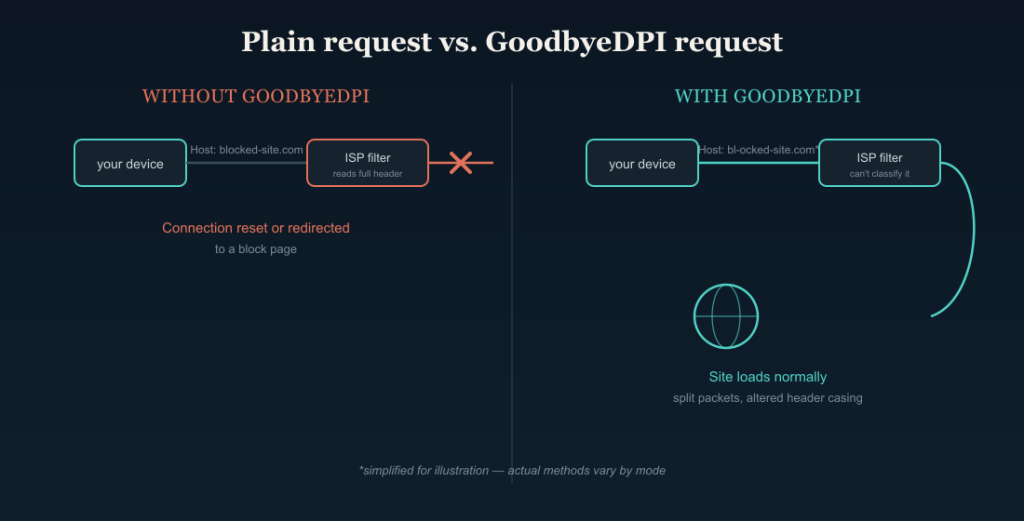
Rather than encrypting your traffic like a VPN, GoodbyeDPI uses techniques such as splitting outgoing packets, altering how the “Host” header is sent, and adjusting TCP behavior so that automated filters can’t easily classify the connection as one to block. Most of these methods operate within standard TCP/HTTP rules, so ordinary websites continue to work normally.
It runs on Windows XP SP3 and newer, works from the command line (no installation wizard), and relies on a driver called WinDivert to intercept and modify network packets on the fly.
Is GoodbyeDPI Safe and Legal?
Safety: The official GoodbyeDPI code itself doesn’t contain malware. However, two safety issues come up constantly:
Antivirus false positives. Because GoodbyeDPI intercepts and modifies network traffic — the same category of behavior some malware uses — many antivirus tools (including Windows Defender) flag it or the WinDivert driver as suspicious. This is a documented, widely reported false positive for this class of tool, not evidence of infection.
- Fake copies. Third-party download sites and some “GUI wrapper” projects bundle GoodbyeDPI with adware or outdated, tampered builds. The risk isn’t the real tool — it’s imitation downloads.
Legality: Whether you’re allowed to use DPI-circumvention tools depends entirely on where you live and what network you’re on. In many countries, this kind of software is legal for personal use; in some jurisdictions, or on employer/school networks, bypassing content filters can violate local law or a network’s terms of use. Check your local regulations and any applicable network policy before using it, and don’t use it to access services or content that are illegal in your location.
Before You Download
You’ll need:
- Windows XP SP3 or later (Windows 10/11 is the common case today)
- Administrator access, since GoodbyeDPI installs a low-level network driver
- A few minutes to unzip and run a script — there’s no installer.
- Optionally, a way to check file hashes if you want to verify authenticity beyond the source
Step-by-Step: Downloading GoodbyeDPI Safely
- Go straight to the source. Open the official repository at github.com/ValdikSS/GoodbyeDPI — don’t download from third-party “mirror” or software-bundling sites, which are the main source of tampered copies.
- Open the Releases page and pick the newest release listed at the top.
- Download the .zip file, not a standalone .exe from an unrelated site. The official release ships as an archive containing goodbye.exe, a set of .cmd scripts, and the WinDivert driver files.
- Unzip it to a folder you control, such as Documents\GoodbyeDPI, rather than running it straight from the Downloads or a temp folder.
- Expect an antivirus warning. If Windows Defender or your antivirus quarantines a file, that’s the known false positive described above. If you’re not confident in distinguishing a false positive from a real threat, it’s reasonable to scan the zip with a second-opinion tool (like VirusTotal) before restoring it, comparing results across multiple engines rather than trusting a single flag.
Step-by-Step: Running GoodbyeDPI
GoodbyeDPI is not meant to be double-clicked directly in most cases — the bundled .cmd scripts set the right combination of options for you.
- Right-click the folder and confirm you’re in the unzipped directory; you should see goodbyeDPI.exe and several .cmd files.
- Pick the script for your situation:
- If you’re outside Russia, the general-purpose script (commonly named something like 2_any_country_dnsredir.cmd) is the standard starting point. It runs GoodbyeDPI with recommended settings and redirects DNS lookups to a public resolver on a non-standard port, which helps when your provider is intercepting DNS requests to enforce blocks.
- Country- or ISP-specific forks (for example, community builds tuned for Turkey) exist for networks with unusual filtering setups — only use these from repos with clear, active maintenance.
- Right-click the script and choose “Run as administrator.” A console window will open and stay open; that’s expected, since GoodbyeDPI runs actively while the window is open.
- Test a previously blocked site or service in your browser. If it loads, GoodbyeDPI is working.
- Close the console window to stop it. Traffic filtering only happens while the script is running — it isn’t a persistent background service unless you deliberately install it as one. If you do install it as a persistent Windows service, use the matching removal script in the same folder, run it as administrator, then delete the GoodbyeDPI folder.
Choosing the Right Mode for Your ISP
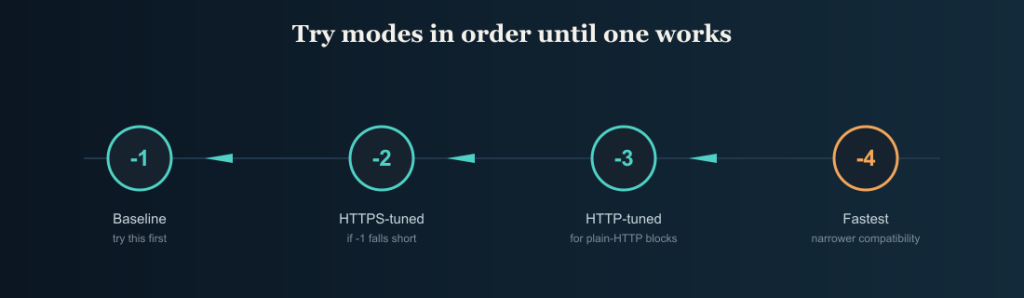
If the default script doesn’t work, GoodbyeDPI can be run manually with numbered mode flags that trade speed for compatibility:
| -1 | Baseline circumvention settings | First thing to try |
| -2 | Optimized for HTTPS sites | If -1 doesn’t help, or HTTPS sites specifically are blocked |
| -3 | Optimized for HTTP sites | If plain HTTP sites are blocked |
| -4 | Fastest mode, narrower compatibility | If your ISP’s DPI is a simpler type; try last |
To test a mode manually, open Command Prompt as an administrator, cd to the GoodbyeDPI folder, and run goodbyedpi.exe -1 (replace the number with the other mode numbers). Most passive DPI systems respond to a blocked HTTP request with a redirect or reset an HTTPS connection. GoodbyeDPI’s job is to stop the filter from recognizing the request in the first place.
Common Problems and Fixes
- Nothing changed, sites are still blocked. Try a different numbered mode, or add the –blacklist option with a list of known-blocked domains for your country — this limits GoodbyeDPI’s changes to just those sites, which some DPI systems handle better.
- DNS lookups fail. Your provider may be intercepting DNS. Use the –dns-addr option to point to a public resolver on a non-standard port, or set up DNS-over-HTTPS/TLS separately.
- Console window closes immediately. Usually, it means it wasn’t run as administrator, or another program is already using the WinDivert driver.
- Antivirus keeps deleting the files. Add an exclusion for the folder only after you’ve confirmed the source and, ideally, cross-checked the file with a multi-engine scanner.
- It worked yesterday, not today. ISPs update their filtering periodically; try the next mode up or check the repo’s issues page for reports that match your provider.
Uninstalling GoodbyeDPI
Since GoodbyeDPI usually just runs from a console window rather than installing as a service, closing that window stops it completely. If you used a script that installs it as a persistent Windows service, look for a matching service_remove.cmd or similarly named uninstall script in the same folder, run it as administrator, then delete the GoodbyeDPI folder.
Alternatives to GoodbyeDPI
- VPNs encrypt your entire connection and route it through a remote server — broader protection than DPI circumvention alone, at the cost of speed and (for paid options) money.
- Zapret is a similar Linux- and cross-platform-oriented DPI circumvention tool with an overlapping approach.
- GUI wrappers (various community projects) add a graphical interface on top of GoodbyeDPI for people who don’t want the command line — useful for convenience, but check that the project is actively maintained before granting it administrator access.
FAQ
Is GoodbyeDPI a virus?
No — the official release from ValdikSS’s GitHub is not malware. It gets flagged by antivirus software because its packet-modifying behavior resembles techniques used by some malware, which is a known false positive for this category of tool.
Do I need a VPN if I’m using GoodbyeDPI?
Not necessarily. They solve different problems: GoodbyeDPI helps slip past automated content filters without encrypting traffic, while a VPN encrypts and reroutes everything. Some people use both together.
Does GoodbyeDPI work on Mac or Linux?
No — GoodbyeDPI is Windows-only (XP SP3 and later). Similar tools like Zapret target Linux.
Why does the console window need to stay open?
GoodbyeDPI actively intercepts traffic while running. Closing the window stops that process, so filtering circumvention stops too, unless you’ve set it up as a persistent service.
Is it legal to use GoodbyeDPI? It depends on your country and network policy. The software itself is legal to write and distribute, but bypassing content restrictions may violate local law or an organization’s acceptable-use policy in some places. Check before using it on a network you don’t personally control, and don’t use it to access services or content that are illegal in your location.
This guide covers the general, publicly documented behavior of GoodbyeDPI as an open-source project. Always get the software from the official repository and confirm current instructions there, since release scripts and options can change over time.
