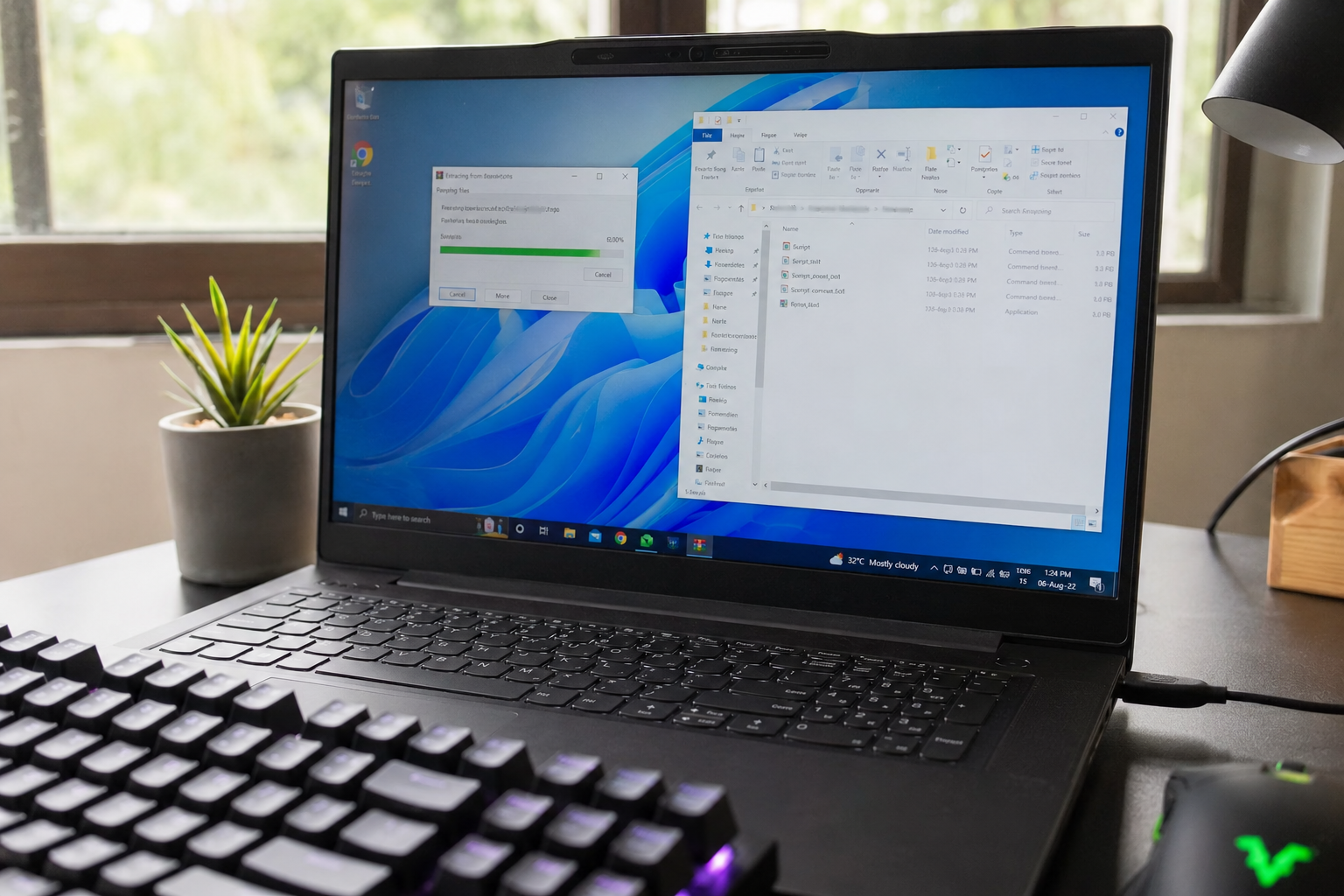
GoodbyeDPI Complete Windows Guide
If a website suddenly won’t load, but works fine over mobile data, that’s usually not the site’s fault — it’s your ISP’s Deep Packet Inspection (DPI) system deciding what you’re allowed to reach. GoodbyeDPI is a free, open-source Windows utility that quietly rewrites the shape of your outgoing traffic so DPI filters can’t recognize what you’re connecting to, without routing a single byte through a third-party server. This page is the complete, plain-English GoodbyeDPI Windows guide: what GoodbyeDPI actually does, how to install it safely on Windows 7 through 11, how to configure it for your specific ISP, and what to do when a site still won’t open.
This guide is written for exactly one kind of reader: someone on Windows who just wants a specific site or service back, without paying for a VPN subscription, without slowing down the rest of their connection, and without needing a networking background to get there. If that’s you, the Quick Start below gets you to the right section immediately.
Quick Start
Not sure where to begin? Pick the step that matches where you are right now.
Install
Download the latest signed release and run the service script in under five minutes.
Configure
Pick the right bypass mode (-1 through -9) for your ISP’s specific blocking method.
What Is GoodbyeDPI?
GoodbyeDPI is a lightweight, open-source Windows application, originally released by developer ValdikSS, built to defeat a specific category of internet censorship: Deep Packet Inspection. It does not encrypt your traffic, it does not hide your IP address, and it does not act as a proxy. Instead, it works at the network-driver level on your own PC, altering how the very first packets of a connection are shaped before they ever leave your machine.
That distinction matters. Most people assume the only way around a blocked site is a VPN. A VPN solves a different problem — it hides what you’re doing from your ISP entirely by tunnelling everything through an encrypted connection to a remote server. GoodbyeDPI solves a narrower, more surgical problem: it stops your ISP’s inspection equipment from recognizing the destination of a normal, unencrypted-looking connection attempt, so your original request goes through untouched and at full speed.
In practice, that makes GoodbyeDPI the right tool when:
- A specific set of websites or services is blocked by your ISP or national censor, but the rest of the internet works fine.
- You want to keep your original IP address and full connection speed (no VPN server in the middle).
- You need something that runs invisibly in the background as a Windows service, with no monthly cost, no account, and no logging.
- You’ve already tried changing DNS servers and it didn’t help — because the block is happening deeper than DNS.
GoodbyeDPI is not a magic bypass for every kind of restriction. It cannot get around blocks based on your IP’s geographic location (geofencing), and it does very little if your traffic is already encrypted end-to-end through something like a VPN or Tor, since there’s no plaintext handshake left for it to manipulate. Understanding this boundary up front will save you time — see the GoodbyeDPI vs VPN comparison below for exactly where each tool wins.
The project began as a personal fix for exactly this problem: a developer, working under the handle ValdikSS, published the original source code publicly so anyone facing the same DPI-based blocking could use and inspect it for free. That origin still shapes how the tool behaves today — it stays narrowly focused on the packet-level bypass problem rather than expanding into a general-purpose privacy suite, and every release remains open for independent review rather than distributed as a closed binary you have to simply trust. That’s also why this guide exists: the official repository documents the code well, but it assumes a level of networking familiarity most Windows users don’t have. This page translates that documentation into a setup and troubleshooting path anyone can follow.
How Does It Work?
To understand GoodbyeDPI, it helps to understand what it’s fighting. When your browser connects to a website over HTTPS, the very first exchange — the TLS “Client Hello” — is not encrypted yet. It typically contains the domain name you’re trying to reach in plain text, inside a field called SNI (Server Name Indication). DPI equipment sitting inside your ISP’s network reads that plaintext domain name in real time and, if it matches a blocklist, either drops the connection, injects a fake reset packet, or redirects your browser to a warning page.
GoodbyeDPI intercepts your own outgoing packets before they leave your network adapter and applies a small set of techniques designed to make that plaintext domain unreadable to inspection equipment — while leaving the packets perfectly intelligible to the real destination server once reassembled:
- Packet fragmentation. Instead of sending the TLS Client Hello as one clean chunk, GoodbyeDPI splits it into smaller fragments at the TCP level. Many DPI systems inspect traffic in a single pass and fail to reassemble fragmented packets before pattern-matching.
- SNI and host-header case alteration. Some inspection systems do simple, case-sensitive string matching against a blocklist. By mixing the case of the domain string inside the handshake, GoodbyeDPI can cause naive filters to miss the match entirely.
- Fake / decoy packet injection. GoodbyeDPI can send a deliberately malformed or misleading packet ahead of the real one, aimed at confusing passive DPI systems.
- Dropping injected replies. Passive DPI often works by racing your connection. GoodbyeDPI watches for exactly this pattern and discards the forged packet.
- Local DNS handling. Because DNS queries (Port 53) can themselves be hijacked at the ISP level, GoodbyeDPI can intercept and redirect these locally, working well alongside Cloudflare (1.1.1.1) or Quad9.
None of this requires an external server. Every operation happens inside your machine’s own network stack, between your applications and your network card, which is precisely why GoodbyeDPI adds effectively zero latency and consumes only a small amount of memory to run continuously.
Installation Guide
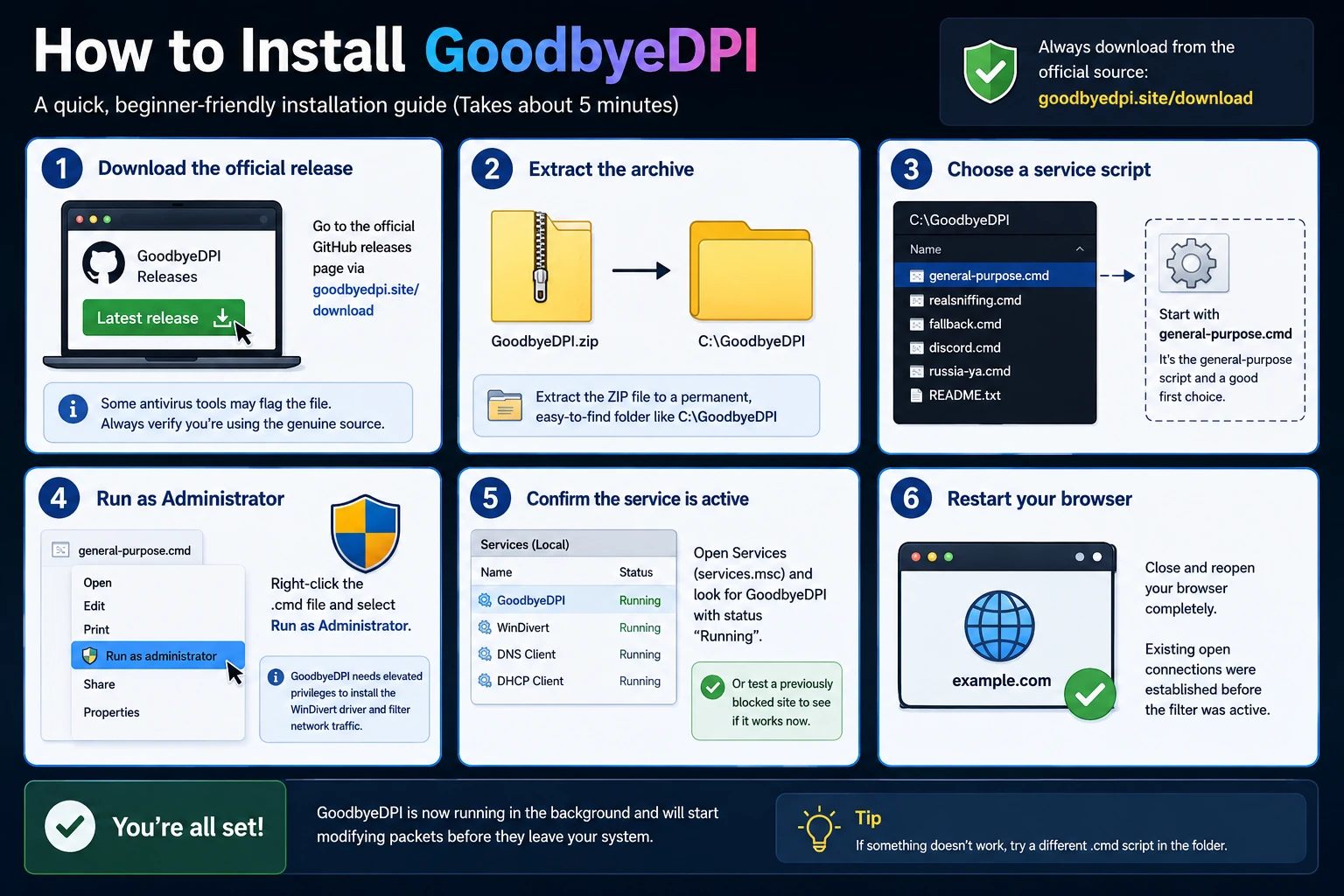
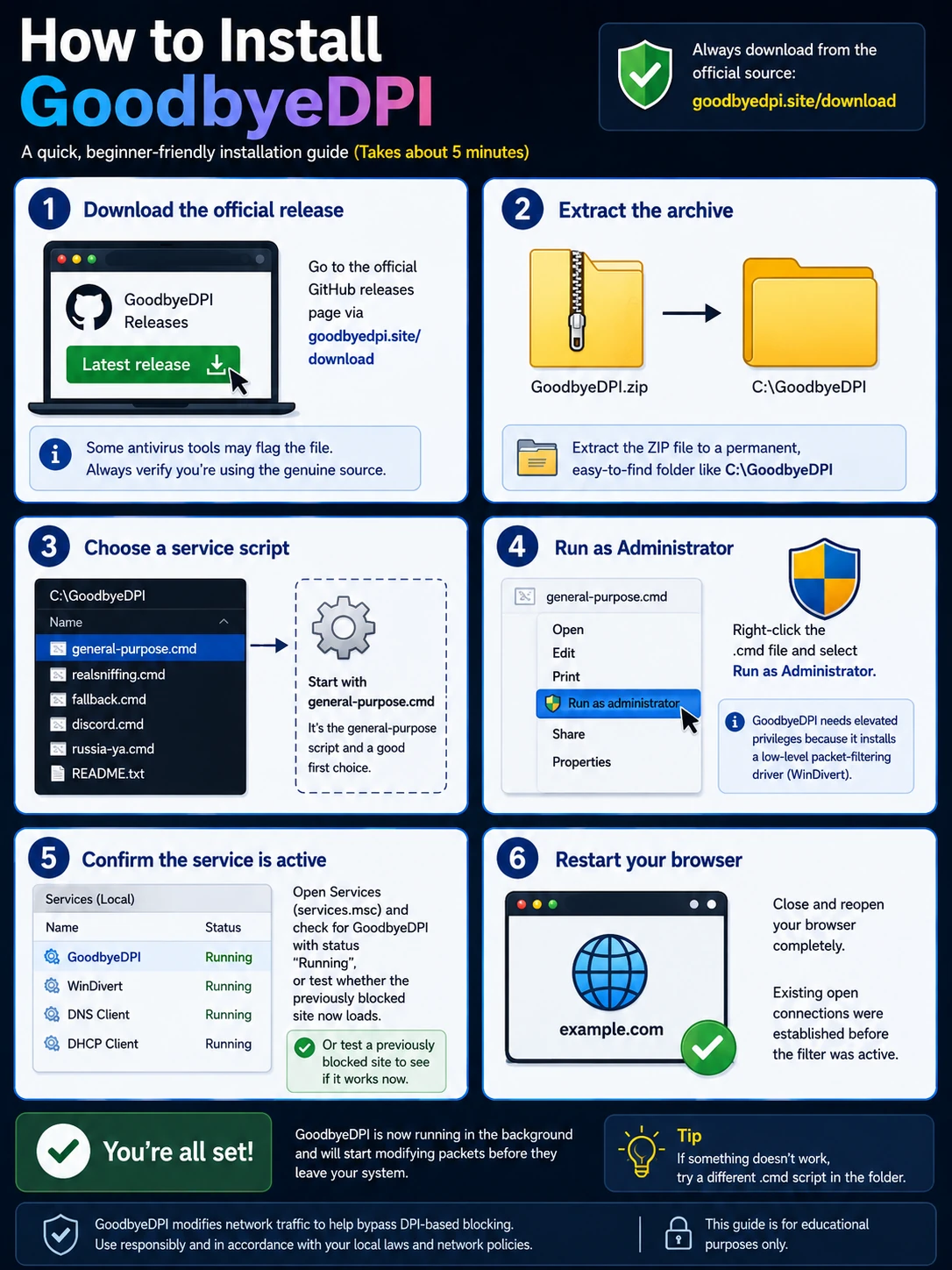
Installing GoodbyeDPI takes about five minutes and does not require any technical background. Follow these steps in order.
- Download the official release. Only ever download GoodbyeDPI from the official GitHub releases page linked from this site’s Download button. Because it modifies low-level network behavior, some antivirus tools and Windows SmartScreen will flag an unfamiliar executable — verify you’re getting the file from the genuine source rather than a third-party mirror before you proceed.
- Extract the archive. GoodbyeDPI ships as a ZIP file. Extract it to a permanent, easy-to-find folder such as
C:\GoodbyeDPIrather than a temporary Downloads subfolder, since the service scripts reference files relative to that location. - Choose a service script. Inside the extracted folder you’ll find several
.cmdscripts corresponding to different bypass presets. For a first attempt, the general-purpose script is the right starting point. - Run as Administrator. Right-click the chosen
.cmdfile and select Run as Administrator. GoodbyeDPI needs elevated privileges because it installs a low-level packet-filtering driver (WinDivert). - Confirm the service is active. Open Services (
services.msc) and check for a GoodbyeDPI entry with status “Running,” or simply test whether the previously blocked site now loads. - Restart your browser. Close and reopen your browser fully after installation. Existing open connections were established before the filter was active.
Because GoodbyeDPI installs as a genuine Windows service, it starts automatically on every boot from this point forward — you do not need to run anything manually again unless you want to change modes or uninstall it later using the matching service_uninstall.cmd script.
Verifying the download before you run it. Since this tool installs a low-level driver, it’s worth spending thirty seconds confirming file integrity before granting it Administrator rights. The official GitHub Releases page lists the exact file size and, for most releases, a checksum you can compare using PowerShell’s Get-FileHash command. See our Download GoodbyeDPI.exe Safely guide for the full walkthrough.
Switching or removing your setup later. If you later want to try a different bypass mode, run service_uninstall.cmd as Administrator first, then run the install script for the new mode. To remove GoodbyeDPI entirely, the same uninstall script cleanly stops the service and unregisters the driver.
Windows Compatibility
GoodbyeDPI is built specifically for Windows and is not natively available for macOS or Linux, both of which have their own dedicated circumvention tools better suited to their networking stacks.
| Windows Version | Architecture | Support Level |
|---|---|---|
| Windows 11 | 64-bit | Fully supported |
| Windows 10 | 32-bit & 64-bit | Fully supported |
| Windows 8 / 8.1 | 32-bit & 64-bit | Supported |
| Windows 7 (SP1) | 32-bit & 64-bit | Supported |
| Windows Server editions | 64-bit | Generally works, unofficial |
A few practical notes worth knowing before you install. GoodbyeDPI depends on the WinDivert packet-capture driver, which is signed and compatible with Windows’ default driver-signing enforcement — you should not need to disable any security features to run it. On some heavily locked-down corporate or school machines, group policy may block third-party driver installation outright. Windows Defender or third-party antivirus occasionally flags the executable heuristically, purely because it manipulates network packets.
32-bit vs. 64-bit builds. Most Windows installations from the last decade run 64-bit, but if you’re unsure, open Settings → System → About and check “System type” before extracting the archive. Windows Server builds aren’t officially tested by the project but generally behave like their desktop Windows 10/11 counterparts.
Troubleshooting
Most “GoodbyeDPI isn’t working” reports trace back to one of a handful of predictable causes. Work through these in order before assuming the tool itself has failed.
- The service isn’t actually running. Open
services.mscand confirm the GoodbyeDPI entry shows “Running.” - Your browser cached the old (blocked) result. Clear your browser’s cache and DNS cache (
ipconfig /flushdns), then fully restart the browser. - You’re on the wrong bypass mode for your ISP. If the default mode doesn’t unblock a site, try one of the higher-numbered presets — mode
-9stacks multiple techniques together. - DNS-over-HTTPS is disabled. Enabling DoH inside your browser’s security settings, pointed at Cloudflare or Quad9, often resolves sites that fragmentation alone couldn’t fix.
- Another security tool is intercepting traffic first. Temporarily disable other network-level security software to confirm whether it’s the source of the conflict.
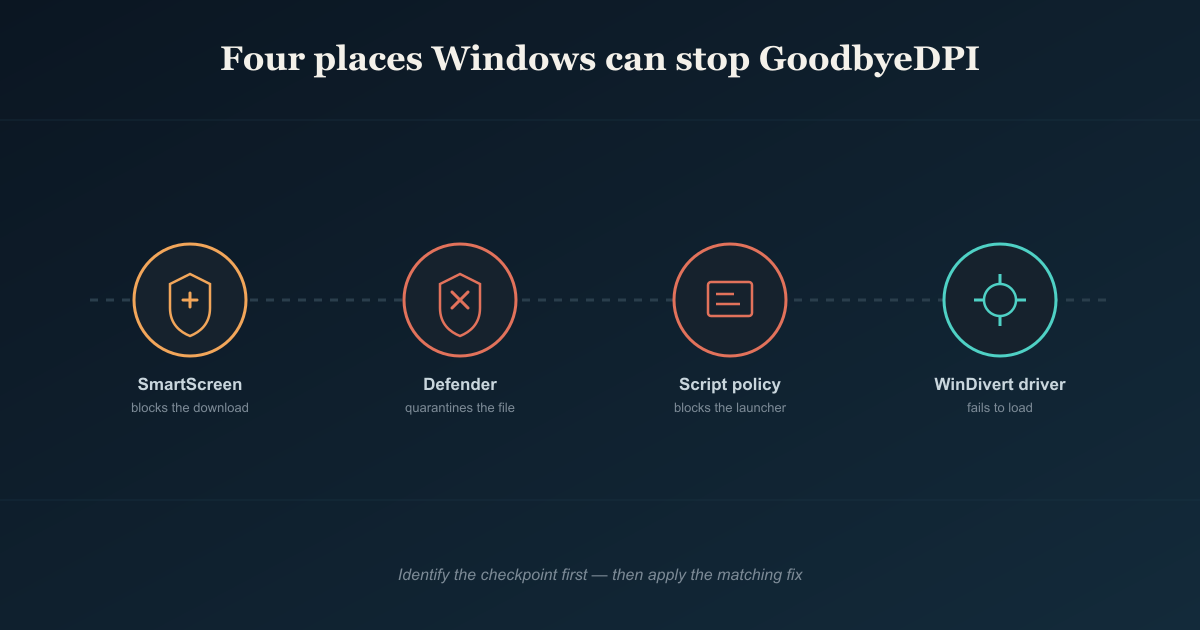
- Windows blocked the download or install itself. Check quarantine logs in your antivirus. See our Download Fixes guide for the four ways Windows gets in the way.
- A conflicting bypass mode is already installed. Run the uninstall script, reboot, and install a single clean mode before troubleshooting further.
- The site itself changed its blocking method. If a previously-working setup suddenly fails everywhere at once, try moving up one preset level.
If a site remains blocked after all of the above, it’s worth confirming the block isn’t geographic — see the FAQ below for how to tell the difference.
Configuration
GoodbyeDPI ships with a set of numbered command-line presets, each combining different techniques for different filtering strength and ISP behavior. You don’t need to memorize the underlying flags — pick the preset script matching the situation below and run its .cmd file as Administrator.
| Mode | Best For | What It Combines |
|---|---|---|
| -1 | Light, older DPI systems | Basic HTTP fragmentation only |
| -2 | Standard home ISPs | Fragmentation + host-header case alteration |
| -3 | Moderate filtering | Adds fake packet injection for HTTP |
| -5 | Most common recommended default | Standard fragmentation + TCP window adjustment + host alteration |
| -6 | HTTPS-focused blocking | Adds SNI fragmentation for the TLS handshake specifically |
| -8 | Stricter regional filtering | Layers additional fake-packet and reassembly-timing techniques |
| -9 | Maximum bypass | Full technique stack for aggressive, multi-layered DPI |
A practical approach: start with mode -5, since it resolves the majority of common ISP-level blocks without over-complicating your setup. If specific HTTPS sites still fail while HTTP ones work, move to a mode that layers SNI fragmentation. If nothing below -9 resolves a persistent block, the restriction may not be DPI-based at all. You can also combine GoodbyeDPI with an independent DNS provider: point your network adapter or browser at Cloudflare (1.1.1.1) or Quad9 (9.9.9.9), and enable DNS-over-HTTPS where your browser supports it.
Using the GUI wrapper instead of raw scripts. Some releases bundle a lightweight GUI front-end that lists the same numbered presets as clickable options and shows live status without opening a command window.
Persisting settings across reboots. Because the chosen mode is installed as a Windows service, your selected preset survives restarts automatically.
GoodbyeDPI vs VPN
These two tools solve genuinely different problems, and knowing which one fits your situation avoids a lot of wasted troubleshooting time.
| Feature | GoodbyeDPI | VPN |
|---|---|---|
| How it works | Reshapes your own packets locally | Tunnels all traffic through a remote server |
| Speed impact | Effectively none — no added routing | Often noticeably slower |
| Cost | Free, open source | Often subscription-based |
| Hides your IP address | No | Yes |
| Bypasses geofenced/regional IP blocks | No | Yes |
| Bypasses DPI-based domain blocking | Yes | Yes (encrypted end-to-end) |
| Requires trusting a third party | No | Yes |
| Works on Windows only | Yes | No — cross-platform |
| Setup complexity | One script, background service | App install + account + server selection |
If your goal is simply to reach a handful of specific sites your ISP is filtering, while keeping your original IP, your full connection speed, and zero ongoing cost, GoodbyeDPI is the more targeted tool. If your goal is broader — hiding your browsing from your ISP entirely, appearing to connect from another country, or securing traffic on untrusted public Wi-Fi — a VPN is doing a genuinely different job. Running both together is usually unnecessary and can even conflict: once a VPN encrypts and tunnels your traffic, there’s no plaintext SNI or Host header left for GoodbyeDPI to manipulate. See GoodbyeDPI Alternatives for other tools when neither fits alone.
Security & Privacy
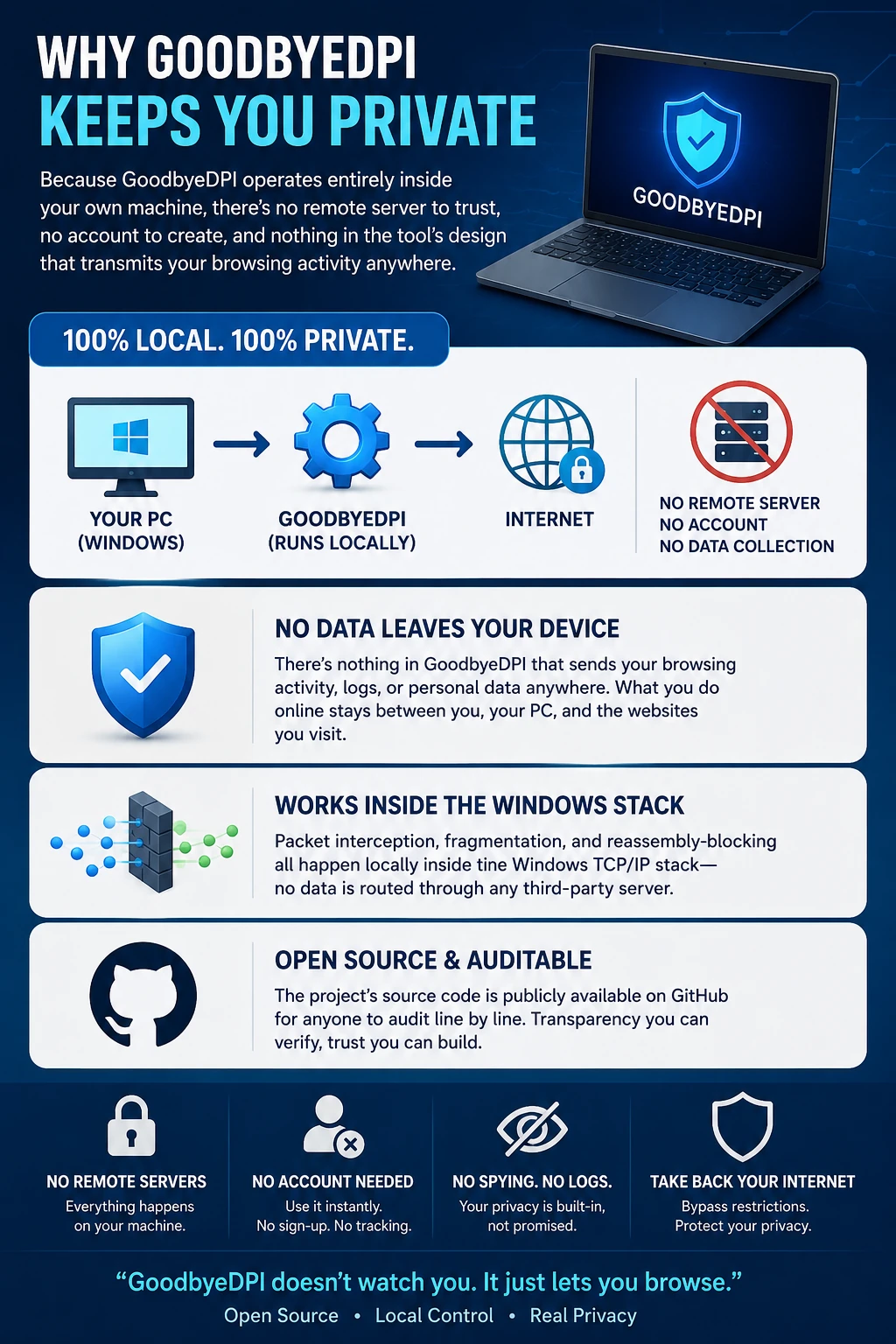
Because GoodbyeDPI operates entirely inside your own machine, there’s no remote server to trust, no account to create, and nothing in the tool’s design that transmits your browsing activity anywhere. Packet interception, fragmentation, and reassembly-blocking all happen locally inside the Windows TCP/IP stack, and the project’s source code is publicly available on GitHub for anyone to audit line by line.
That said, “no logging by design” is not the same as “invisible to everyone.” A few honest caveats worth understanding:
- Your ISP can still see that you’re connecting to an IP address, even if it can no longer easily identify which domain on that IP you requested.
- GoodbyeDPI does not encrypt anything that wasn’t already encrypted. If a site only serves plain HTTP, your ISP can still read the content of that traffic.
- Installing any tool that runs a low-level system driver carries inherent risk if you download it from an untrusted source. Always verify you’re downloading from the official GitHub repository.
- In regions where circumventing internet censorship itself carries legal risk, understand your local laws before running any bypass tool.
How this compares to a “free VPN” app. Many free VPN apps generate revenue by logging and reselling browsing data. GoodbyeDPI has no server to fund, so there’s no equivalent business incentive baked into the tool itself.
Used as intended, GoodbyeDPI is a narrow, auditable, locally-run tool that does exactly what its open-source code says it does — nothing more, and nothing hidden.
DPI Learning Center
Understanding why your connection gets blocked makes every other section on this page easier to act on. Here’s the short version of how ISP-level censorship actually works.
What Deep Packet Inspection actually is. Ordinary network routing only reads the “envelope” of a data packet — where it’s headed. DPI equipment goes further and reads the contents inside that envelope in real time, looking for identifiable patterns like plaintext domain names, known VPN protocol signatures, or specific keywords.
Passive vs. active DPI. Passive systems sit outside the direct traffic path, silently copying and analyzing packets, then racing to inject a fake response before the genuine server can reply. Active systems sit directly in-line with your traffic and can drop, delay, or modify packets in transit.
Why HTTPS didn’t solve this already. The initial TLS handshake itself historically exposes the destination domain in plaintext through SNI, which is exactly the field DPI systems key on. Newer standards like Encrypted Client Hello are gradually closing this gap, but adoption is still inconsistent.
Common censorship methods beyond DPI. DNS hijacking, IP blackholing, and protocol-specific throttling are all separate techniques. Recognizing which one you’re facing is the fastest way to pick the right fix.
A worked example. Imagine a browser hangs on one specific streaming site while every other site loads normally. If you can reach the site’s raw IP directly but not the domain, the block is almost certainly DPI-based — installing GoodbyeDPI in mode -5 is the correct next step. If the domain resolves to an IP that never responds at all, that pattern points toward IP blackholing instead, and a VPN becomes the more appropriate tool.
Latest Guides
Our in-depth guides go deeper than this overview — step-by-step installs, alternative tools, and fixes for specific Windows errors.
How to Install GoodbyeDPI: Step-by-Step Client Setup Guide
The complete walkthrough from download to a confirmed-working service.
GoodbyeDPI Alternatives: 9 Secure Open-Source Tools for Bypassing DPI
When GoodbyeDPI isn’t the right fit, including Zapret and other projects.
GoodbyeDPI Download Fixes: Resolving Windows Script Interceptions
A focused fix for the four ways Windows gets in the way of installation.
Download GoodbyeDPI.exe Safely: Full Setup Guide
How to verify you’re downloading the genuine file from the official repository.
FAQ
What is Deep Packet Inspection (DPI) censorship?
DPI is a network filtering method ISPs and network operators use to read the contents of data packets, not just their routing headers. It typically inspects plaintext domain information inside the connection handshake to decide, in real time, whether to allow or block a request.
How does GoodbyeDPI bypass inspection without routing through a server?
It doesn’t relay your traffic anywhere. It manipulates the shape of your own outgoing packets — splitting the handshake into fragments and adjusting header details — so inspection equipment can’t recognize the destination, while the real server still reassembles and answers your original request normally.
Does GoodbyeDPI log or transmit my traffic data?
No. Every part of the process — interception, fragmentation, and reassembly-blocking — happens locally on your own machine. Nothing is sent to an external server, and the open-source code is publicly auditable.
Will using GoodbyeDPI slow down my connection?
No meaningful slowdown should occur. Because there’s no external routing involved, your bandwidth remains governed only by your ISP’s normal capacity, and the tool’s memory footprint while running is minimal.
What's the difference between active and passive DPI blocking?
Passive DPI copies your traffic and races to inject a fake blocking response before the real server replies. Active DPI sits directly inline and can drop or modify packets in transit. GoodbyeDPI includes separate techniques aimed at defeating each type.
Can I run GoodbyeDPI alongside a VPN or custom DNS?
Custom DNS, yes — providers like Cloudflare or Quad9 work well alongside it. A traditional VPN is usually redundant to run at the same time, since VPN encryption already hides the plaintext handshake data that GoodbyeDPI would otherwise manipulate.
Which Windows versions are supported?
Windows 7 (SP1), 8, 8.1, 10, and 11, in both 32-bit and 64-bit builds. It is not available for macOS or Linux.
What if a site is still blocked after I install it?
Confirm the service is actually running, clear your DNS and browser cache, try a higher-numbered bypass mode, and enable DNS-over-HTTPS. If none of that helps, the block may be IP-based rather than DPI-based.
Does GoodbyeDPI bypass geographic (geo-IP) blocks?
No. If a service blocks traffic based on your country’s IP address ranges, your public IP hasn’t changed, so client-side packet manipulation has nothing to affect. That specific problem requires a VPN or proxy instead.
Is GoodbyeDPI actually free and open source?
Yes. It’s maintained as an open-source project with publicly available source code and build binaries, free to download and redistribute under its published license.
Do I need to be technical to use it?
No. Installation is a single script run as Administrator, and the default preset resolves most common blocks without any manual configuration.
Will GoodbyeDPI stop working after a Windows update?
Occasionally a major Windows feature update can require reinstalling the WinDivert driver component. If the service shows as stopped after an update, re-running the install script usually restores it in seconds.
About / Trust
This site exists as an independent, plain-English reference for GoodbyeDPI on Windows — not the official project homepage. We link directly to the genuine GitHub repository for every download, keep our installation and configuration steps current as new releases ship, and update our troubleshooting guidance as Windows itself changes how it handles unsigned scripts and third-party drivers. Every guide on this site is written to be tested step-by-step on real Windows installs, not rewritten from someone else’s article, and we’re upfront about what GoodbyeDPI can’t do rather than overselling it as a universal fix. If you spot an outdated step or a broken link, our contact page is the fastest way to reach us.
We don’t sell VPN placements, don’t accept payment to rank one alternative above another, and we say clearly when GoodbyeDPI isn’t the right tool for a given situation rather than stretching its capabilities to keep you on this page. Learn more about us.
Blogs
GoodbyeDPI Alternatives: 9 Secure Open-Source Manuals for Bypassing DPI
July 21, 2026
No Comments
GoodbyeDPI Download Fixes: Resolving Windows Script Interceptions
July 20, 2026
No Comments
Get Back to the Open Internet
DPI-based blocking is one of the most common reasons a perfectly normal website suddenly stops loading — and it’s usually fixable in under five minutes, for free, without slowing down anything else on your connection. Grab the latest official release, follow the setup guide above, and get back to the open internet.