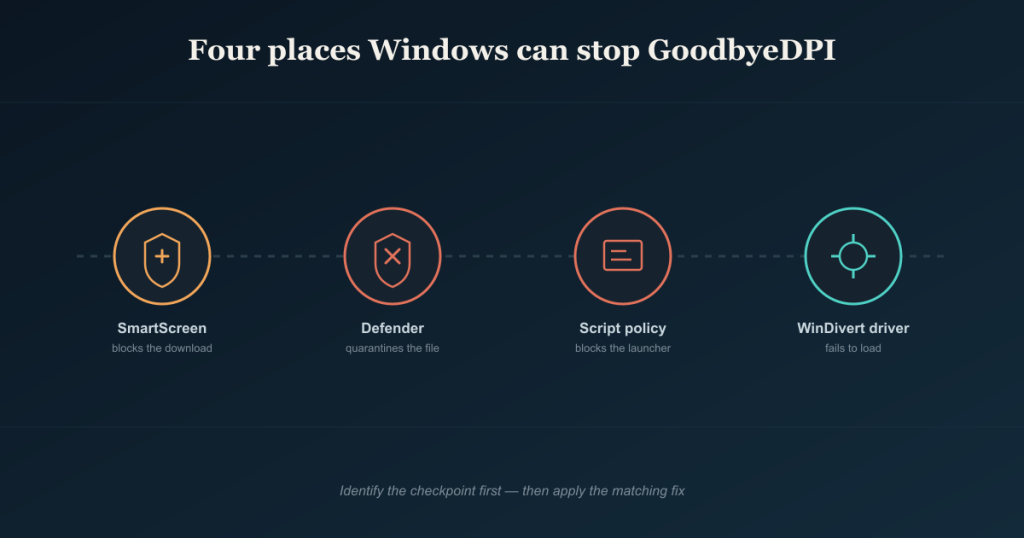
Quick answer: Most “GoodbyeDPI isn’t working” problems trace back to Windows intercepting it at four points — SmartScreen blocking the download, Defender quarantining the executable or scripts, a local script-execution policy silently blocking the .cmd launcher, or the WinDivert driver failing to load. Fixing GoodbyeDPI usually means identifying which of these is happening, not reinstalling from scratch.
If you’ve already followed a basic setup guide and Goodbye DPI Download still won’t run — or ran once and now silently does nothing — the cause is usually Windows getting in the way before GoodbyeDPI touches your network traffic. This is a deep-dive troubleshooting reference for exactly that: the four places Windows intercepts the tool, how to tell them apart, and how to fix each one without disabling your security software wholesale.
The Four Interception Points
Before troubleshooting further, it helps to know which layer is actually stopping you, since the fix is different for each:
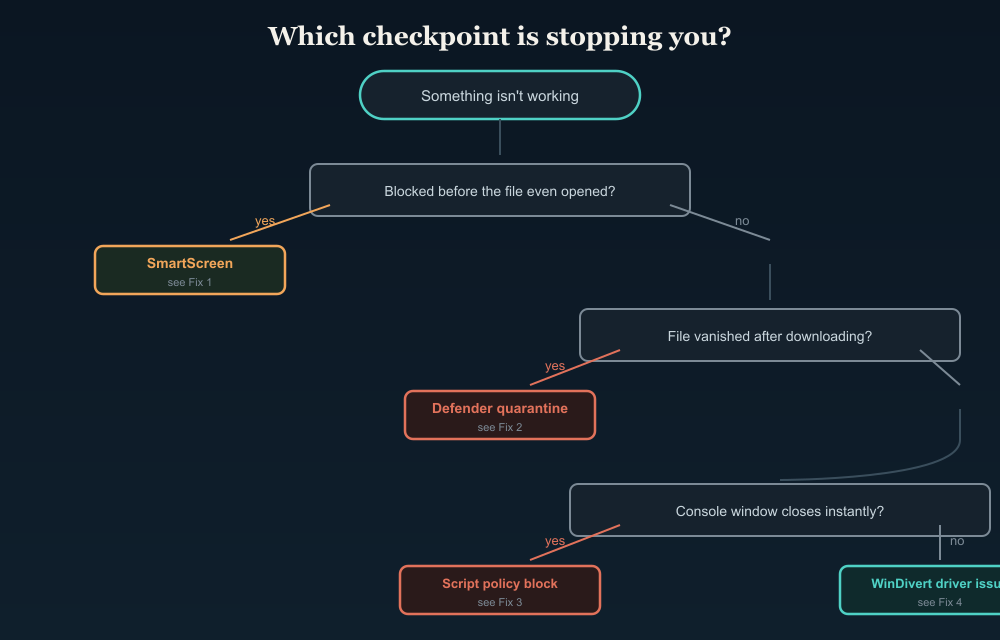
| SmartScreen | “Windows protected your PC” pop-up when opening the downloaded file | Low download reputation for a niche tool |
| Defender / antivirus | File vanishes after download, or a notification says a threat was removed | Heuristic match on packet-manipulation behavior |
| Script execution policy | .cmd window flashes and closes instantly, or “blocked by your administrator” message | Local or domain policy restricting script types |
| WinDivert driver | Script runs, console stays open, but nothing actually changes — blocked sites are still blocked | Driver signing issue, Secure Boot, or a conflicting network filter driver |
Work through these in order — there’s no point in troubleshooting the driver if SmartScreen deleted the file five minutes ago.
Fix 1: SmartScreen Blocking the Download {#fix-1-smartscreen}
Windows SmartScreen judges files partly by how many other Windows users have downloaded that exact file. Niche, infrequently-downloaded tools like GoodbyeDPI trigger this constantly — it’s a popularity signal, not a malware signature.
To get past it safely:
- When you see “Windows protected your PC,” click More info, then Run anyway — but only if you downloaded the file from the official ValdikSS GitHub repository and no other source.
- If the “Run anyway” option doesn’t appear at all, your organization or a third-party security suite may have SmartScreen set to its strictest setting. In that case, check Windows Security → App & browser control → Reputation-based protection settings, and confirm “Check apps and files” is set to Warn rather than Block.
- Don’t disable SmartScreen system-wide just to get one file through — that removes a protection layer for everything else you download afterward.
Fix 2: Defender Quarantining Files {#fix-2-defender-quarantine}
This is the single most common interception. Defender (and most third-party antivirus engines) flag GoodbyeDPI because its packet-splitting and header-manipulation behavior overlaps with techniques used by some malware families — the detection is behavioral, not based on an actual malware signature match.
To resolve it:
- Open Windows Security → Virus & threat protection → Protection history and check what was actually removed — usually goodbyedpi.exe or one of the .cmd scripts.
- Restore the file from quarantine only after reconfirming that it came from the official repository (see the cross-checking steps below).
- Add a folder exclusion (not a full Defender shutdown) for the specific GoodbyeDPI directory: Windows Security → Virus & threat protection → Change settings → Add or remove exclusions → Add an exclusion → Folder.
- If it’s re-quarantined immediately after restoration, Defender’s cloud-delivered protection may re-scan on execution — the folder exclusion above should stop that for a folder you’ve already vetted.
Fix 3: Script Execution Blocked by Policy {#fix-3-script-execution-policy}
If the console window opens and closes in under a second, or you see “This app has been blocked by your system administrator,” a script-execution restriction — not an antivirus detection — is the cause.
Common sources and fixes:
- Local Group Policy may restrict which script extensions can run. Check gpedit.msc → Computer Configuration → Administrative Templates → System → “Don’t run specified Windows applications,” and confirm .cmd files aren’t explicitly blocked.
- AppLocker or Software Restriction Policies, common on managed devices, can block scripts from user-writable folders entirely. Moving the GoodbyeDPI folder won’t fix this if the policy blocks by publisher or hash rather than by path.
- Right-click → Properties → Unblock. Files downloaded from the internet get a hidden “mark of the web” flag. If the checkbox for “Unblock” appears at the bottom of the Properties dialog, check it and apply — this alone resolves a surprising number of silent script failures.
Fix 4: WinDivert Driver Won’t Load {#fix-4-windivert-driver}
This is the trickiest one because there’s no error message — the script appears to run, but your traffic passes through unchanged. GoodbyeDPI depends on the WinDivert kernel driver to intercept packets, and if that driver fails to load, the rest of the tool runs with nothing to actually filter. Check whether the driver is loaded, whether the script was run with admin rights, and whether another filter is interfering.
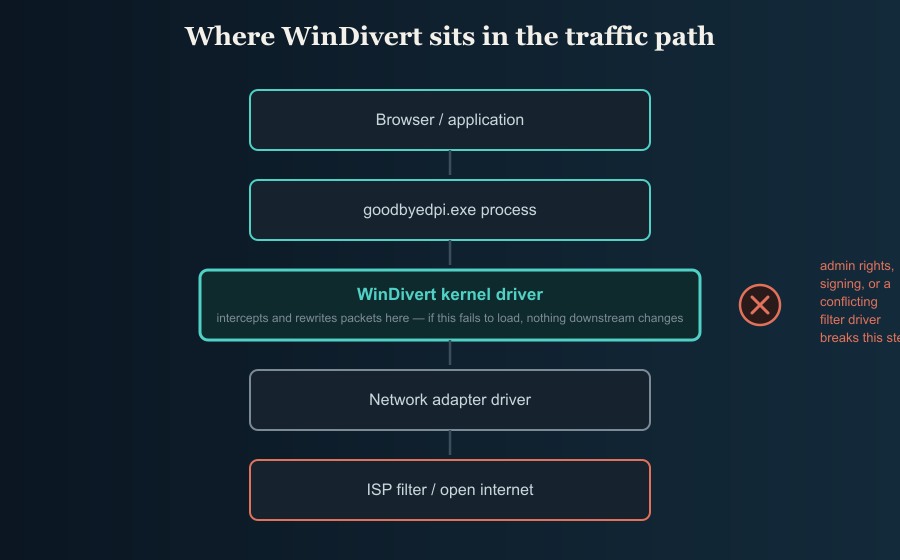
Likely causes and checks:
- Not running as administrator. WinDivert requires elevated privileges to install its driver. If you launched the script by double-clicking rather than “Run as administrator,” this is almost certainly the issue.
- Conflicting network filter drivers. VPN clients, other proxy tools, or a second DPI-circumvention tool running simultaneously can compete for the same packet-filtering layer. Close other network-filtering software before testing.
- Driver signature enforcement. On some systems, particularly ones with Secure Boot strictly configured, an older or mismatched WinDivert driver version bundled with an outdated GoodbyeDPI release can fail signature checks. Downloading the current release from the official repo (rather than an old cached copy) resolves this in most cases.
- Check Event Viewer. Windows Logs → System, filtered for driver load failures around the time you ran the script, will usually name the exact driver and error code if this is the issue.
Confirming Your Copy Is Clean After a Quarantine {#confirming-your-copy-is-clean}
After any quarantine event, it’s worth confirming your restored file is identical to the official release rather than assuming the detection was purely behavioral:
- Re-download the .zip file from the Releases page on the official repository rather than trusting a restored, possibly modified copy.
- Use certutil -hashfile goodbyedpi.exe SHA256 in Command Prompt to generate a hash, and compare it against any hash published alongside the release, if the maintainer provides one.
- Upload the zip (not the extracted exe, to avoid re-triggering a local quarantine) to a multi-engine scanner and check whether the majority of engines flag it, versus one or two broad, low-confidence heuristic flags across many engines look very different from a specific, named-threat detection from most engines.
Signs It’s Not a False Positive {#signs-its-not-a-false-positive}
Most detections here are the known behavioral false positives, but a few signs suggest an actually tampered copy rather than a false alarm:
- The file size differs noticeably from what’s listed on the official Releases page.
- Multiple trusted antivirus engines name a specific trojan or backdoor family, rather than a generic “potentially unwanted” or heuristic label.
- The download came from a site other than the official GitHub repository — search results, forum links, and “portable software” aggregators are the most common sources of tampered copies.
- The archive contains extra executables beyond goodbyedpi.exe, the .cmd scripts, and the WinDivert driver files.
If any of these apply, don’t restore the file from quarantine — delete it and re-download directly from the source.
Corporate or Managed PCs: What Changes {#corporate-or-managed-pcs}
On a work laptop or school-managed device, several of the fixes above may be unavailable to you as a standard user — folder exclusions, policy edits, and driver installation typically require administrator rights that managed devices intentionally withhold. In that setting, running GoodbyeDPI may not be technically possible without IT involvement, and attempting to bypass those restrictions can violate acceptable-use policy even where the software itself is legal to use elsewhere. This is worth checking with your IT department before spending time on workarounds.
FAQ
Why did GoodbyeDPI work before and suddenly stop? A Defender definition update, a Windows update that changed script-execution defaults, or a new competing network filter driver (like a newly installed VPN client) are the most common causes of something that used to work suddenly failing. Start by checking those three possibilities, since they explain most sudden breakages.
Is it safe to add a permanent Defender exclusion for GoodbyeDPI’s folder? It’s reasonable to exclude the specific folder you’ve verified, but avoid excluding broad locations like your whole Downloads folder or Documents directory, which removes protection for everything else stored there. Use the narrowest exclusion that solves the problem.
The script runs without errors, but the sites are still blocked — what’s wrong? This points to the driver-loading issue in Fix 4, not a script or antivirus problem. Confirm you ran it as administrator and check Event Viewer for driver load failures. If those checks fail, focus on the driver before anything else.
Should I just disable Defender entirely to make this easier? No — this trades a specific, narrow problem for a broad, ongoing security risk. A targeted folder exclusion resolves the same issue without leaving your system unprotected. Keep the protection layer in place and fix only what is needed.
