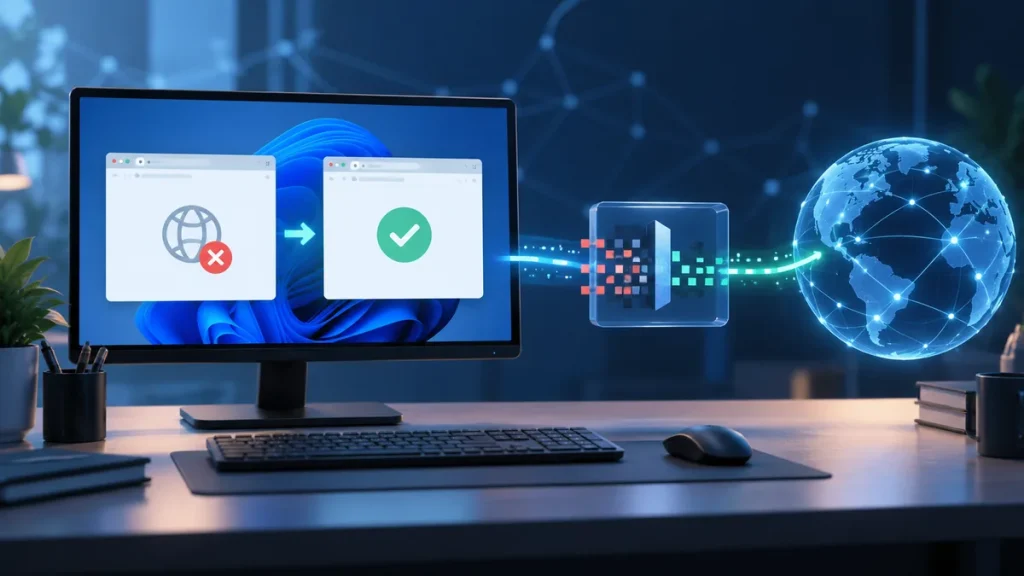
GoodbyeDPI is a Windows program that uses packet-handling techniques to make some forms of deep packet inspection less effective. It does not route your connection through a VPN server, and it cannot solve every kind of block. This guide covers a cautious first setup using the files and instructions included with the upstream release.
Before you begin: Download from the official GitHub releases page. Do not use a third-party installer or disable security protections to force an unknown file to run.
1. Extract the release archive
Download the release archive and extract it to a folder you can find again. Keep the executable, driver files, and scripts together. Do not move only one file out of the archive unless the project instructions say to do so.
2. Read the included instructions
The release may include different scripts for different configurations. Their names and available options can change between versions. Read the upstream README and inspect the scripts in that same archive rather than choosing a file from an old screenshot or a generic �best mode� recommendation.
The official GoodbyeDPI README includes usage notes and known issues. The project documents Windows service scripts too; do not assume every launch method installs a persistent service.
3. Run only a script you understand
If the upstream instructions say the selected script needs administrator rights, right-click that script and choose Run as administrator. Review the Windows prompt and proceed only if the file came from the official release and you understand what it does. If unsure, stop and check the project documentation before granting elevated access.
4. Test one expected result
After startup, test the specific site or service that was failing. A successful test on one destination does not prove all traffic is private or every blocked site will work. If there is no change, do not repeatedly install random presets. Record the exact error and use the troubleshooting checklist.
5. Know how to stop it
Use the matching exit or removal instructions for the version and launch method you used. If you installed it as a service, use the corresponding removal method documented by that release. Restart Windows only if the project instructions recommend it, then check that the service or process is no longer active.
Common setup mistakes
- Running files from an archive that has not been extracted.
- Mixing scripts or driver files from different releases.
- Assuming a script name is right for every ISP.
- Running a third-party GUI wrapper with administrator access without checking its publisher.
- Treating a successful connection as proof that the tool encrypts traffic. It does not.
For current files and changed steps, use the upstream releases and project documentation. For download checks, see how to download GoodbyeDPI safely.
Before you install GoodbyeDPI on Windows
Prepare a small checklist so the first test is easy to understand. Note whether the computer runs Windows 10 or Windows 11, which network connection you are using, and which exact site or application fails. This gives you a baseline to compare after launch. Close unrelated network tools if you can do so safely, and avoid changing browser, DNS, router, and GoodbyeDPI settings all at once.
Download the archive from the official release page and keep all files together after extraction. Read the README included with that release. A script name shown in a forum post may not exist in the current version, and a command intended for one network can behave differently on another. If the archive contains several scripts, do not select one just because its number looks higher or because a comment calls it the strongest option.
Choose the launch method from upstream instructions
GoodbyeDPI can be started in different ways depending on the release and configuration. Some instructions run a process in a command window. Other documented methods install a Windows service so the program can run in the background or at startup. These are not interchangeable: the service method persists differently and needs its matching removal procedure.
Read what each upstream script does before running it. Confirm that the script and executable came from the same archive. If Windows asks for administrator access, grant it only after checking the source and understanding that a packet-filtering driver may need elevated permission. A third-party wrapper may add its own behavior, so verify the wrapper separately from the GoodbyeDPI engine.
First-run verification
After starting the program, test only the destination that failed before. Try the same browser and connection first, then make a second comparison only if needed. Record what changed: whether the program stayed running, whether Windows showed a driver message, and whether the original site loaded. One successful destination does not mean every website or application will work.
If the connection is unchanged, do not keep launching random scripts. Use the steps in the troubleshooting checklist to separate a launch error from a network restriction or unrelated outage. If Windows reports a driver or integrity issue that you cannot verify, stop and consult the release documentation rather than bypassing the warning.
Common Windows setup mistakes to avoid
- Extracting only the executable and leaving required files behind.
- Mixing scripts from one release with binaries from another.
- Assuming an old screenshot reflects the current file names.
- Leaving a service installed while trying another service configuration.
- Treating a successful test as proof of encryption, anonymity, or a changed IP address.
- Disabling security protections to make an unverified package run.
Keep the upstream README and the matching removal instructions available before you install. If you later decide to remove it, use the steps for the method you actually used. The safe download guide covers source checks; the stop and uninstall guide covers rollback.
Does the same script work for every Windows PC?
There is no universal script recommendation. Follow the current release notes and test methodically for your Windows build and network. If the first documented option fails, record the symptom and use the upstream issue tracker or the site�s troubleshooting guide.
Does installation turn GoodbyeDPI into a VPN?
No. It does not route the connection through a remote VPN provider or make all traffic private. If routing or privacy is your main goal, compare those needs separately before installing a network tool.
