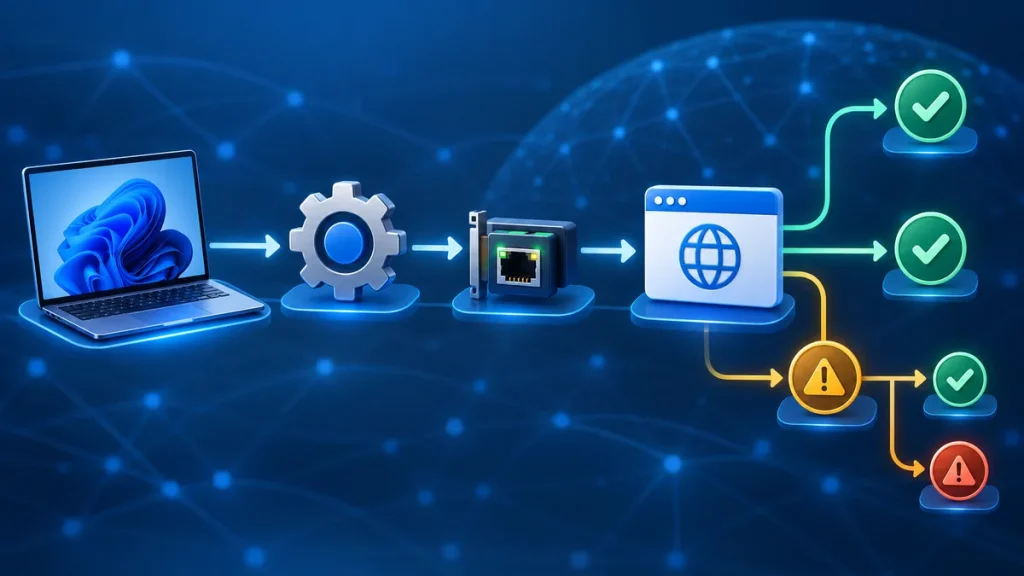
If GoodbyeDPI did not change the connection, first identify what failed. �It doesn�t work� can mean the program will not start, a driver was blocked, or one website remains unreachable. Those problems have different causes.
1. Record the exact error
Write down the full message and where it appeared: a command window, Windows Security, an antivirus alert, a browser page, or another application. If it mentions a missing file, driver, or permission, do not guess at a fix. Check that all files came from the same official release and follow its instructions.
2. Confirm how you launched it
GoodbyeDPI can be run using different scripts and configurations. The available files may vary by release. Check the upstream README and make sure you used a script included in the release you downloaded. Do not combine a script from one version with driver files from another.
Some methods use a Windows service, while others may run as a foreground process. Check the method you used before looking for a service that may not exist.
3. Check driver and security messages
GoodbyeDPI relies on WinDivert, a Windows packet-capture and filtering driver. If Windows or security software blocks a driver, review the alert and confirm the software�s origin. Do not turn off antivirus protection broadly or download a replacement driver from an unrelated site. The upstream project lists known compatibility issues, including a conflict with Killer Control Center�s Advanced Stream Detect feature.
4. Test the destination another way
Try the site in another browser and, if possible, on a different network. If it fails on multiple networks, the cause may be the site or device. If it works on mobile data but not on your home connection, that suggests a network-specific issue, but does not prove DPI is responsible.
5. Check whether this is the kind of block GoodbyeDPI addresses
GoodbyeDPI targets certain DPI-based filtering behaviors. It does not change your public IP address, encrypt all traffic, or bypass every IP-based or account-based restriction. A regional availability block, server outage, DNS issue, or application-specific problem may need a different diagnosis.
6. Undo conflicting configurations carefully
If you have tried several scripts, wrappers, VPNs, or network-filtering products, stop and review what is currently running. Use the matching removal instructions for the version and launch method. Restart only when the upstream instructions call for it, then test one clean configuration at a time.
When to stop troubleshooting
If Windows reports a driver or integrity error you cannot verify, stop rather than bypassing the warning. Consult the upstream issue tracker with the exact message, Windows version, network adapter, and release number. Do not include private browsing data in a public report.
For setup details, see the Windows installation guide. For download alerts, see Windows download and script troubleshooting.
Diagnose the symptom before changing settings
The fastest way to troubleshoot GoodbyeDPI is to classify the failure. A program that exits at launch needs a different check from a program that stays open while one website remains unavailable. Use this table to choose the next step instead of trying several unrelated fixes.
| What you see | What to check next |
|---|---|
| The command window closes immediately | Confirm the archive was extracted, required files are together, and the script came from that release. |
| Windows shows a driver or permission warning | Verify the source and read the alert. Stop if you cannot confirm the driver; do not disable protection broadly. |
| The process starts but nothing changes | Test the same destination, then check whether the restriction is actually DPI-related. |
| Only one app fails | Compare it with a browser and another network. The cause may be app-specific or account-related. |
| The connection gets worse | Stop the active method and use the matching upstream removal or reset steps before testing again. |
Run a controlled troubleshooting test
Start with a clean record: release version, Windows version, launch script name, network adapter, exact error, and the destination that fails. Then make one change at a time. For example, first confirm that the program remains running; next test the affected site; only then compare another browser or connection. If you change the script, adapter, DNS, proxy, and VPN together, you will not know which change mattered.
Check whether another network-filtering product or VPN is active. If you find one, follow its own safe stop procedure and test a single configuration. Do not remove drivers, edit registry entries, or delete system files based on a generic troubleshooting post. Those steps can create new network problems and are not a substitute for identifying which component is running.
Tell a real block from an unrelated problem
GoodbyeDPI targets some DPI-based filtering behavior. A DNS resolver problem, site outage, IP-based rule, account restriction, parental-control setting, captive portal, or browser proxy can look like a block but have a different cause. Compare the same site on another device or connection where practical. A difference between home Wi-Fi and mobile data is a clue about where the issue occurs, not proof of the exact filtering method.
The upstream README documents known compatibility issues, including a conflict involving Killer Control Center�s Advanced Stream Detect feature. Check the current README because known issues can change. If you use a third-party GUI wrapper, note its version as well as the underlying GoodbyeDPI version.
When to stop and ask for help
Stop if Windows reports a driver-signing or integrity issue that you cannot verify, or if the instructions tell you to turn off security protection without a clear explanation. Gather only relevant technical details: operating-system version, release, script name, adapter, and the exact error text. Remove usernames, IP addresses, tokens, and private browsing details before posting publicly.
For a public issue report, search the upstream issue tracker first and check whether the same problem is already documented. For an installation problem, return to the Windows installation guide. For file or script warnings, use the download troubleshooting guide.
Why does GoodbyeDPI still not work after installation?
Installation only confirms that files were launched or a service was configured. It does not confirm that the cause is DPI filtering or that a particular configuration fits your network. Identify the symptom, verify the release instructions, and change one variable at a time.
Should I try a stronger preset?
Do not treat a higher number as a universal fix. Use only options documented for the release you downloaded, and stop if the connection becomes unstable.
