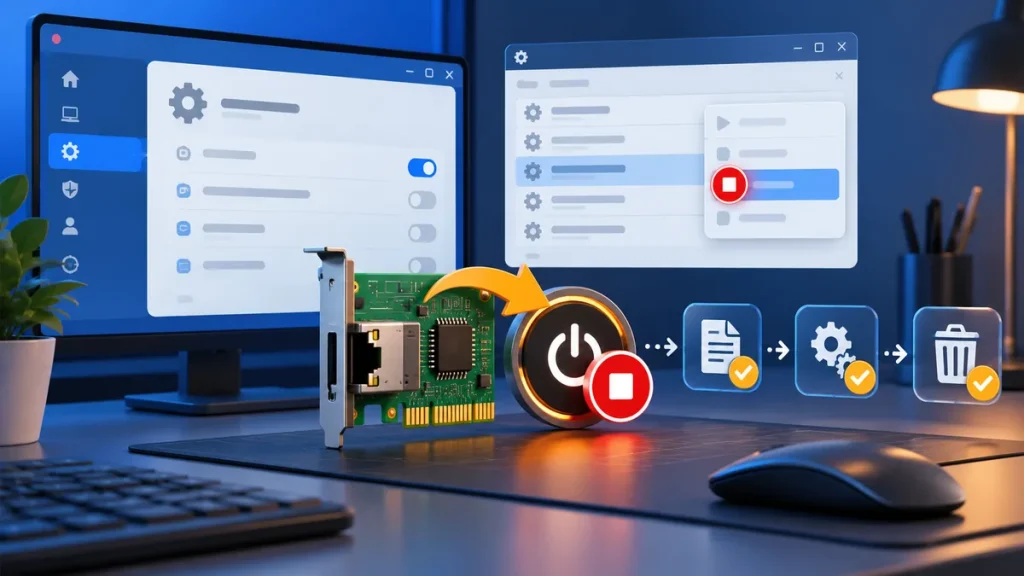
The right way to turn off GoodbyeDPI depends on how you started it. Some users launch a script that remains open; other instructions install a Windows service. Do not delete driver files or remove services manually until you have identified the launch method.
If it is running in a command window
Return to the command window that launched the program and use the exit method described by the script or release instructions. If the window is open, closing it may stop a foreground process, but do not assume that this removes a service installed separately. Check the upstream instructions for that release.
If it was installed as a Windows service
Use the removal script that matches the installation method and release. The official GoodbyeDPI README describes service installation examples and their matching removal instructions. Do not run an unrelated removal script from a third-party bundle.
After removal, check the Services app or Task Manager as appropriate to the method you used. Restart if the upstream instructions recommend it, then confirm that the service or process is no longer active.
If you are not sure how it was installed
- Find the extracted release folder and note its version.
- Look at the script or instructions you originally used.
- Check the official README for the corresponding removal path.
- If you used a GUI wrapper, consult that wrapper�s own removal instructions too.
If you cannot identify the installation method, avoid deleting files from System32 or removing driver entries from the registry. Get help using the exact script name, release number, and Windows error message.
After uninstalling
Reopen the affected browser or application and test your connection. If the original problem remains, it may have another cause. GoodbyeDPI does not alter every network setting, and uninstalling it cannot repair an unrelated DNS, router, account, or website issue.
For a fresh setup, return to the Windows installation guide. For startup problems, see GoodbyeDPI troubleshooting.
Identify the installation before you remove it
Before uninstalling GoodbyeDPI, identify how it was started. A command window that runs the program, a Windows service, and a graphical wrapper can leave different processes or settings behind. Check the original release folder, the script you ran, or the wrapper�s own documentation. Do not use a generic removal package from a search result when you do not know which files it targets.
If the program is running in a visible command window, follow the exit instructions for that release. Closing the window may stop a foreground process, but it will not necessarily remove a service that was installed earlier. If you used a service installer, use the matching removal script described in the same release documentation. The official GoodbyeDPI README explains the service installation and removal path.
Confirm that it has stopped
After following the documented removal steps, check the method you used. For a foreground process, close the program as instructed and verify that it is no longer running. For a service, use Windows� Services interface to check the named service and follow the project�s removal instructions if it remains. A wrapper may have its own startup entry or settings, so consult its documentation too.
Do not delete files from Windows system folders, remove registry entries, or manually uninstall a packet driver unless the upstream instructions explicitly direct you to a verified step. Manual cleanup based on guesses can damage networking or remove a component used by another program. If you cannot identify a service or driver, collect its exact name and ask the project maintainers or a qualified Windows support technician before removing it.
Check the connection after removal
Restart only if the current upstream instructions recommend it. Then test the same browser, site, and network connection you used before. If the original issue remains, that does not necessarily mean GoodbyeDPI was only partly removed. The cause might be the router, DNS, the remote service, an account setting, or another network product.
If you plan to reinstall, first confirm that the old foreground process or service has been removed using the matching method. Download a fresh archive from the official release page, read its README, and avoid copying a new version on top of an old service without checking the update instructions. The Windows setup guide covers a cautious first run.
Common uninstall mistakes
- Removing a service with a script from a different release.
- Assuming that closing a console also removed an installed service.
- Deleting a driver file manually before identifying which program uses it.
- Installing several wrappers and services while troubleshooting.
- Treating a network problem after uninstall as proof that files remain.
How do I turn off GoodbyeDPI temporarily?
Use the stop or exit method documented for the launch method you chose. A foreground process and an installed service need different handling, so check the matching README or wrapper guide.
Do I need to reset Windows networking?
Do not reset networking as a first step. Follow the release�s uninstall instructions, then test the connection. Use broader Windows repair steps only if a separate diagnosis supports them.
